
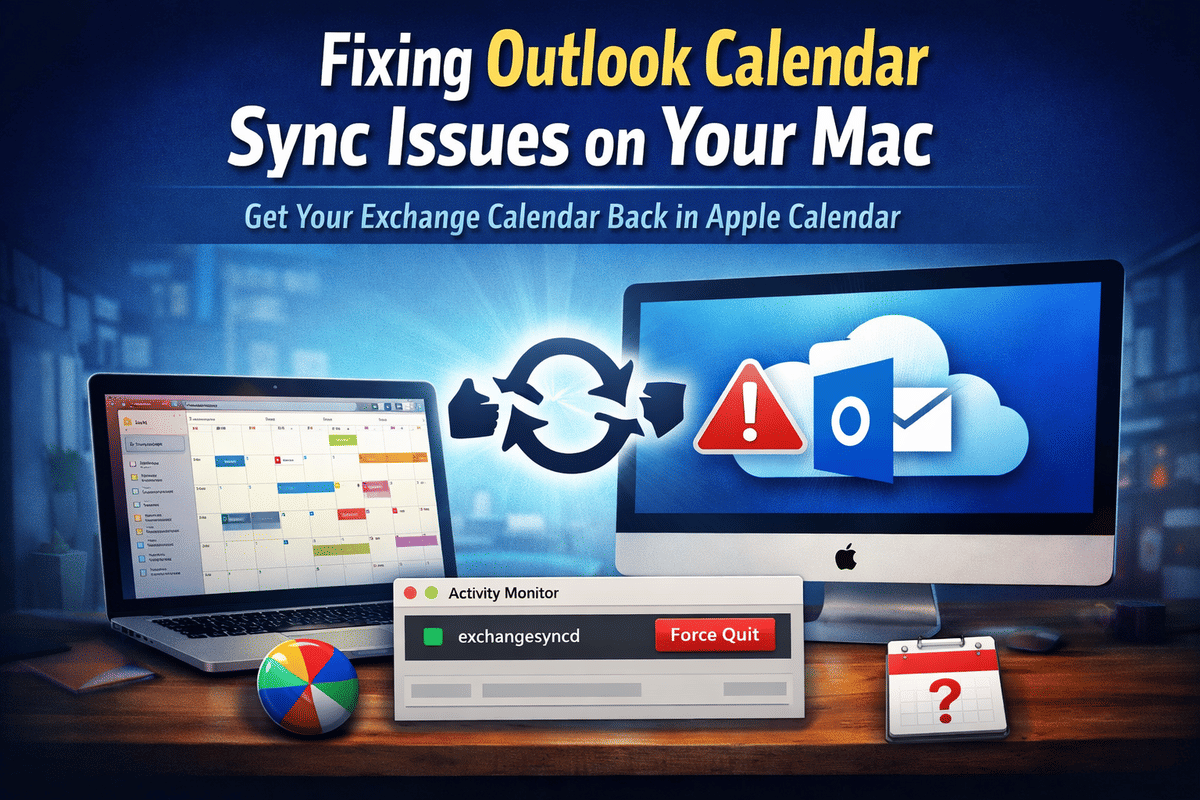
There are few things more frustrating than missing meetings because your calendar quietly stopped syncing. It tends to happen without warning. Your emails continue to arrive as expected, everything looks normal at a glance, and then you realize your Exchange calendar has vanished from Apple Calendar. This is exactly what happened to me.
My Outlook account was still pulling in emails across my MacBook, iMac, and iPhone, but the calendar refused to show up in Apple Calendar. And if, like me, you rely on iCal to bring together personal and professional commitments in one place, this becomes more than a minor annoyance. It disrupts how you manage your day.
I tried all the usual fixes. Restarting devices. Removing and re-adding the email account. Switching between WiFi and mobile data. Updating passwords and changing default calendar settings. Nothing worked. The Outlook app itself showed the calendar just fine, but that created a separate silo, defeating the purpose of a unified view.
The Root of the Problem
What makes this issue particularly tricky is that it does not present as a full account failure. Exchange continues to sync email, which gives the impression that everything is working. But under the surface, the background process responsible for calendar syncing can silently fail.
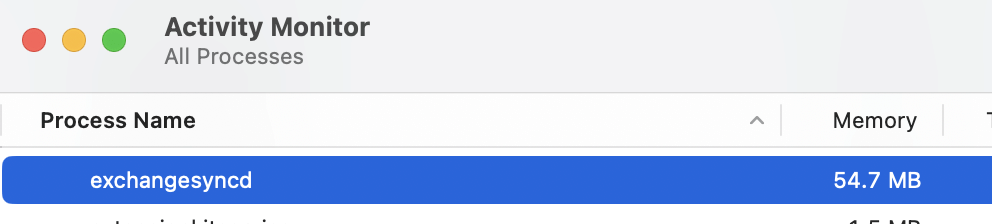
On macOS, that process is called "exchangesyncd." When it gets stuck or crashes, your calendar stops updating even though everything else appears healthy. This is why so many traditional fixes do not work. You are troubleshooting the account, when the issue sits deeper in the system process managing synchronization.
The Fix That Actually Worked
After a lot of trial and error, I found a solution that resolved the issue almost immediately. It is simple, but not something most people would think to try.
Start by closing Outlook, Mail, and Calendar completely. Make sure none of them are running in the background.
Next, open Activity Monitor on your Mac. You can find it using Spotlight search.
In Activity Monitor, search for the process named exchangesyncd. Once you find it, select it and force quit the process.
Now reopen the Calendar app and give it a few minutes.
In my case, the Exchange calendar reappeared and began syncing again without any additional steps.
Why This Works
Force-quitting ExchangeSyncd effectively resets the sync engine that connects your Mac’s Calendar app to your Exchange account. So, when the Calendar app relaunches, macOS starts a fresh instance of the process, which often clears whatever was causing it to stall.
It is a reminder that not all sync issues are account-related. Sometimes the system layer itself needs a reset. But there is a wider takeaway here, especially for anyone juggling multiple calendars across devices and platforms.
We often assume that cloud services are seamless and always in sync. In reality, there are multiple layers involved, from account authentication to background processes and local app behavior. When something breaks, it is not always obvious where the failure sits.
For professionals who rely on their calendar as a single source of truth, this kind of issue can have real consequences. Missed meetings, double bookings, and lost time add up quickly.
If your Exchange calendar suddenly disappears from Apple Calendar while email continues to sync, do not waste hours reconfiguring accounts. Check the process layer first.
It is a small fix, but one that can save you from a much bigger headache.