
Does your Spotify library feel like a chaotic mess? After 15 years of daily listening, following recommendations, playlists, and albums, I reached the point where opening Spotify felt noisy rather than personalized.
The algorithm struggles to understand what you actually like today because it is anchored to habits you built a decade ago. I also want to wander beyond what AI thinks I should like, embrace serendipity, and dare to enjoy things I usually wouldnt.
Algorithms on Spotify, Netflix, and Amazon that give me more of what I want remind me of Noel Gallagher's famous rant: people didn't know they wanted Hendrix, The Beatles, or The Sex Pistols, but they got them.
These frustrations become even more obvious when you try to clean things up and be more open-minded. Although Spotify offers powerful discovery features, it provides few tools to manage your history at scale. That gap is what turns a simple tidy-up into a genuine pain point.
This mini guide will walk you through the problem, explain why Spotify behaves this way, and outline realistic options for bulk unfollowing artists, shows, albums, and playlists safely.
Why Cleaning Up Spotify Feels So Hard
Spotify does not offer a bulk unfollow artist or album option and instead suggests deleting them individually. There aren't select-follow or unfollow-all buttons in one place.
My problem is that I had accumulated more than 10,000 artists and albums over fifteen years, waiting in an endless, unsightly list under "Your Library." Spotify then passes this information to artists who now email me with special offers and announcements because I am their biggest fan, even though I have not listened to them in 8 years.
For heavy users, the problem compounds inside the Your Library section. Artists you followed once, albums you listened to briefly, and shows you tested years ago all remain there. Removing ten thousand selections individually is simply not realistic.
Spotify has a strong emphasis on user experience through personalization, discovery, and engagement as opposed to cleanup at scale. Spotify believes most of its users will never reach the point of being overwhelmed by their music libraries (i.e., they won't be over their heads). The casual listener can continue to utilize the existing tools available to them.
All of the following, save, and historical data points help drive the recommendation engine for users. This is why providing users with a single-click reset button for their data is a significant change in how that data interacts with the system.
Additionally, a single-click reset button may increase churn in the short term, which Spotify is very cautious about. But for users like me who have been using Spotify for a long time, we remain stuck between a love for the past, data gravity, and a User Interface that was never intended for handling 15 years' worth of listening history.
Third-Party Tools That Actually Help
This is where third-party tools fill the gap using Spotify's own API. One long-standing option is the Native Noise Spotify artist management tool at nativenoise.co.za.
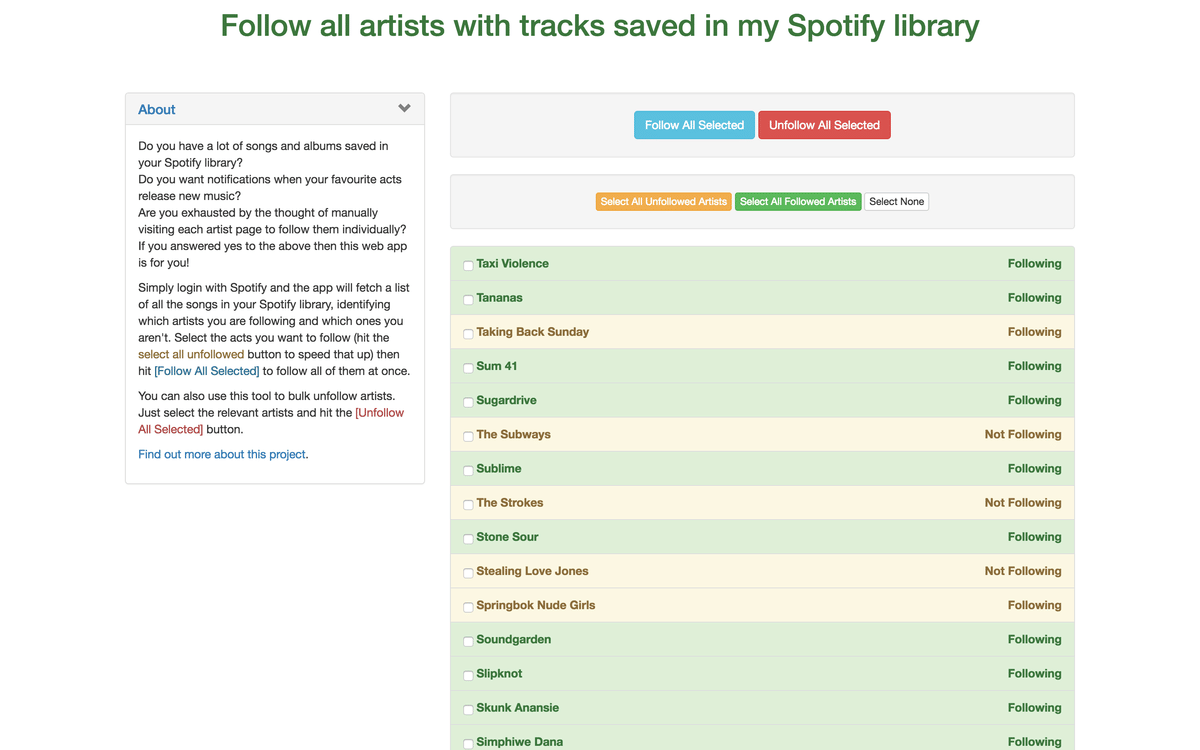
My favorite tool is "Follow All Artists." The tool does what it says on the tin and lets you follow every artist in your library. Or if you want to reset your relationship with Spotify, you can unfollow all artists.
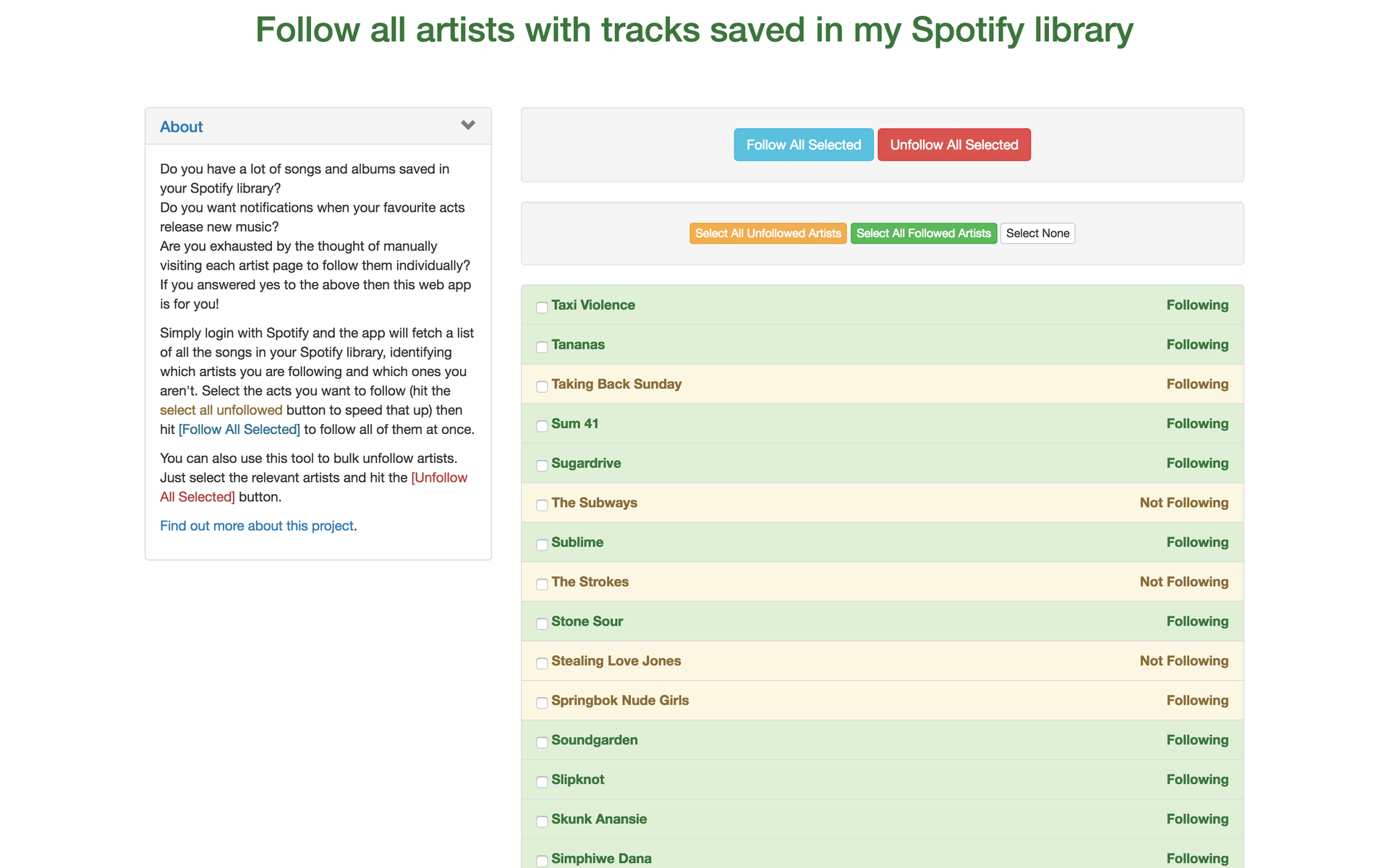
It's easy to use. After logging in with your Spotify account, it scans your saved songs and identifies which artists you are currently following. From there, you can mass-follow or mass-unfollow artists in batches rather than one by one.
For many users, this alone reduces the number of followed artists to a manageable level. Any remaining edge cases can then be cleaned up manually on your profile's Following page in Spotify.
The Most Comprehensive Option for a Full Reset
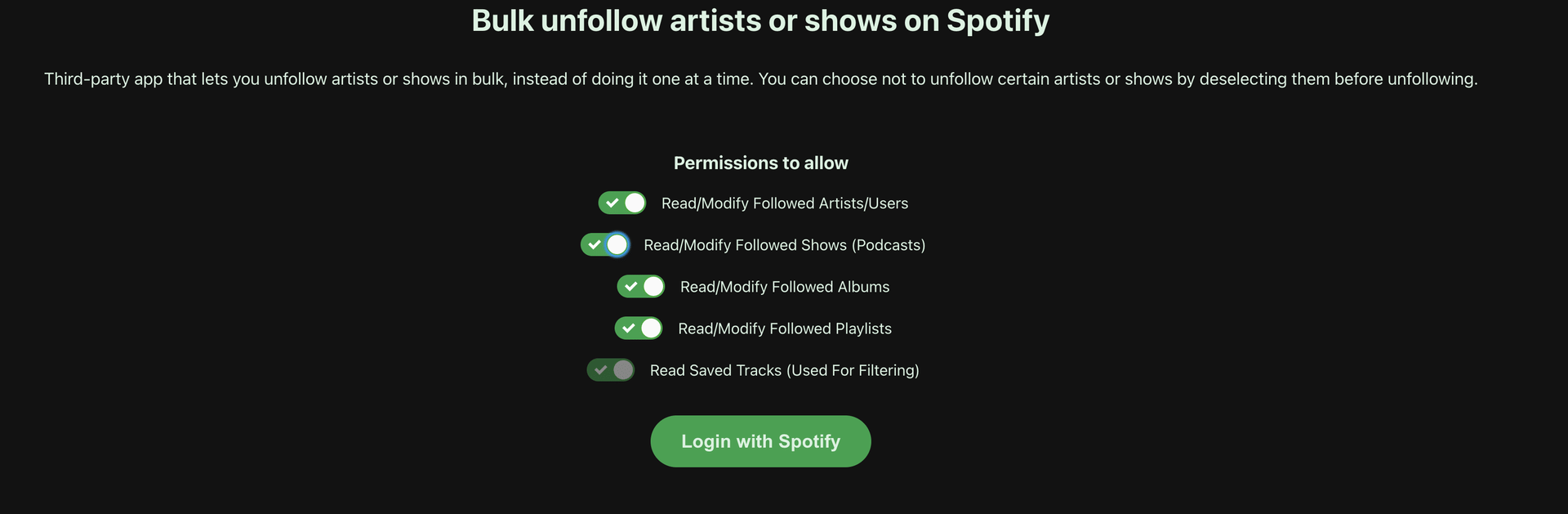
If you want a near-total clean, Spotify Bulk Unfollow is one of the most effective tools out there.
Once logged in, you can select all artists, shows, albums, and playlists in one interface and unfollow them in a single action. For people who want a genuine fresh start, this is the closest thing to a reset button available. Although this was perfect for a neat freak like me, this approach is not for everyone.
Some listeners prefer to prune gradually rather than wipe everything. Others see real value in starting over and letting Spotify relearn their taste based on current listening habits rather than legacy data. Both approaches are valid. The important thing is that you now have a choice.
Staying Safe With Third-Party Spotify Tools
Whenever you use a third-party service with Spotify, it is good practice to review and revoke access afterward. Spotify makes this straightforward, but it must be done through a web browser, not the mobile or desktop app.
After logging in to Spotify.com, navigate to your Account settings, then to the Apps section. There, you will see a list of connected applications with access to your account.
Quick fun fact, 20 years later, I discovered that I am still scrobbling to my old Last FM account. Another old tool that I am keeping is Setify, which converts setlists from a gig you went to into a playlist.
Removing access to any apps does not undo any changes you made with them. But it does ensure old tools cannot interact with your account going forward. This is especially important if you experiment with multiple services while cleaning up your library.
Is a Clean Spotify Library Worth It?
Recommendations often improve quickly once outdated signals are removed. Release Radar becomes more relevant, Discover Weekly feels less confused, and your home screen reflects who you are now, not who you were 15 years ago.
On the downside, you may lose easy access to artists or albums you once enjoyed but forgot about. That can feel uncomfortable at first, especially for listeners who treat Spotify as a musical archive.
For myself, the benefits far outweigh the losses. But I would love to hear what third-party tips and tricks you have to better manage your Spotify experience.